


- CompressConvertAI PDF
- Organize
- View & Edit
- Convert from PDF
- Convert to PDF
- SignMoreScan
- Home
- ›
- ›Add or Avoid Page Breaks in HTML PDFs: A Guide
Add or Avoid Page Breaks in HTML PDFs: A Guide
Add page breaks to PDF before you print a webpage, so headings, images, and tables don’t split in awkward spots across pages.
Saving a webpage as a PDF is usually quick, but page breaks can wreck the layout. Web pages scroll. PDFs paginate. That mismatch creates cut-off images, stranded headings, and strange white space when the browser tries to guess where each page should end.
We’ll show you two practical paths.
How to control page breaks in HTML with print CSS.
How to fix page breaks after export using Smallpdf, especially when you need clean pages for sharing or printing.
Let’s get into it.
Quick Steps: Add Page Breaks to PDF Without Reformatting Everything
If you want the shortest path to a cleaner PDF, follow these steps.
Step 1: Decide If You Control the HTML
If it’s your site or your HTML file, add print CSS rules and reprint the PDF. If it’s someone else’s page, inject temporary CSS with Developer Tools, print, then refresh to remove your changes.
Step 2: Use Print CSS to Control Breaks
Use break-before, break-after, and break-inside inside @media print to control how pages split. Modern browsers support these print break rules widely.
Step 3: Print the Page to PDF and Check the Preview
Open the print dialog, preview the pages, and adjust scale and margins. Chrome’s “Save as PDF” and Windows “Microsoft Print to PDF” typically produce similar results, but metadata and compression can differ.
Step 4: Fix Page Break Problems After Export in Smallpdf
If the PDF still looks wrong, convert it with Smallpdf PDF to Word, insert page breaks in Word, then convert back with Smallpdf Word to PDF.
Add Page Breaks to PDF With Print CSS
This is the cleanest option because you’re fixing the problem at the source.
Browsers follow print styles when you open the print dialog. That’s why your screen layout can look fine, but the PDF preview looks broken. Using @media print lets you define rules that only apply to printed output, including “Save as PDF.”
Add Page Breaks to PDF With CSS: The Rules That Matter
Use modern break properties first, then add older page-break-* rules as a fallback for older print engines. break-before controls breaks before an element, and it’s ignored if there’s no generated box to apply it to.
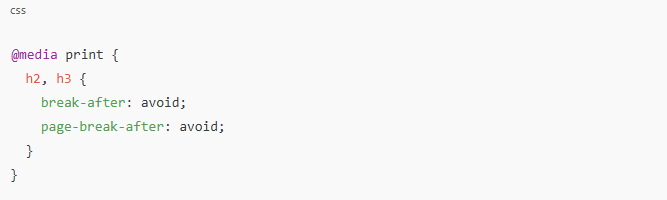
1. Keep Headings With the Content That Follows
A common PDF problem is a heading at the bottom of a page with the paragraph starting on the next page. Apply a break rule before major sections, or prevent breaks inside a heading-and-first-paragraph wrapper.
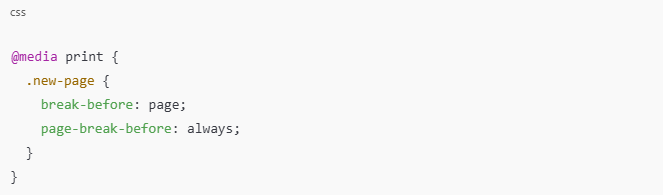
2. Force a New Page Before or After an Element
This is useful for chapter starts, major headings, or appendix sections.
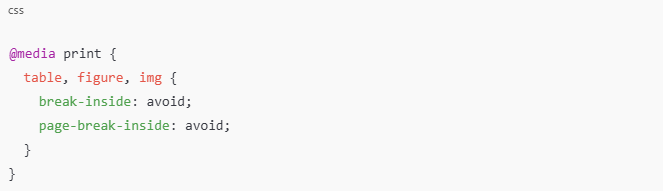
3. Stop Tables and Images From Splitting Across Pages
If a table row gets split, the PDF becomes hard to read. This is where break-inside: avoid helps.
How To Add Page Breaks to PDF for Your Own Website
If you own the codebase, apply print rules once, then every “Save as PDF” export benefits.
Step 1: Add a Print Stylesheet Section
Open your CSS file and add a dedicated print block near the end.

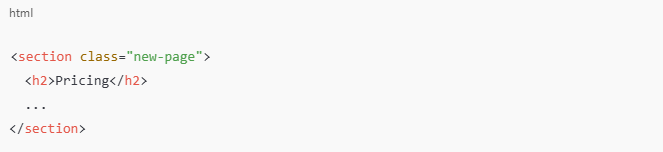
Step 2: Tag Elements You Want to Start on a New Page
Add a class to sections that must always start on a fresh page.
Step 3: Print and Validate the PDF Output
Use the browser print preview and scroll through every page. Check that headings don’t orphan, images don’t split, and tables stay intact.
If a rule causes too many extra pages, remove forced breaks and use “avoid” rules instead. Over-forcing breaks is one of the easiest ways to create huge white gaps.
How To Add Page Breaks to PDF for Someone Else’s Webpage
You can’t edit their server files, but you can inject print CSS temporarily in your own browser session. It’s not permanent, and it resets on refresh.
Step 1: Open Developer Tools
In Chrome, Edge, or Firefox:
Open the webpage you want to save.
Press F12 or Ctrl + Shift + I on Windows.
On Mac, press Cmd + Option + I.
Step 2: Insert Temporary Print CSS in the Head
In the Elements panel, find the <head> tag, then edit it and paste a <style> block near the bottom of the head.
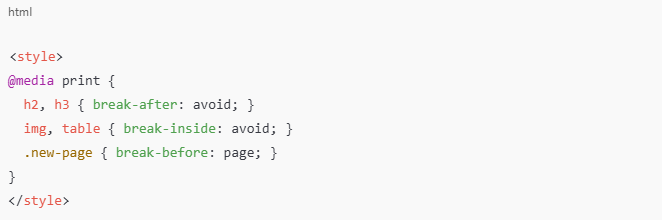
Step 3: Print to PDF Immediately
Open the print dialog, preview, then save the PDF. If you refresh the page before saving, your injected CSS disappears.
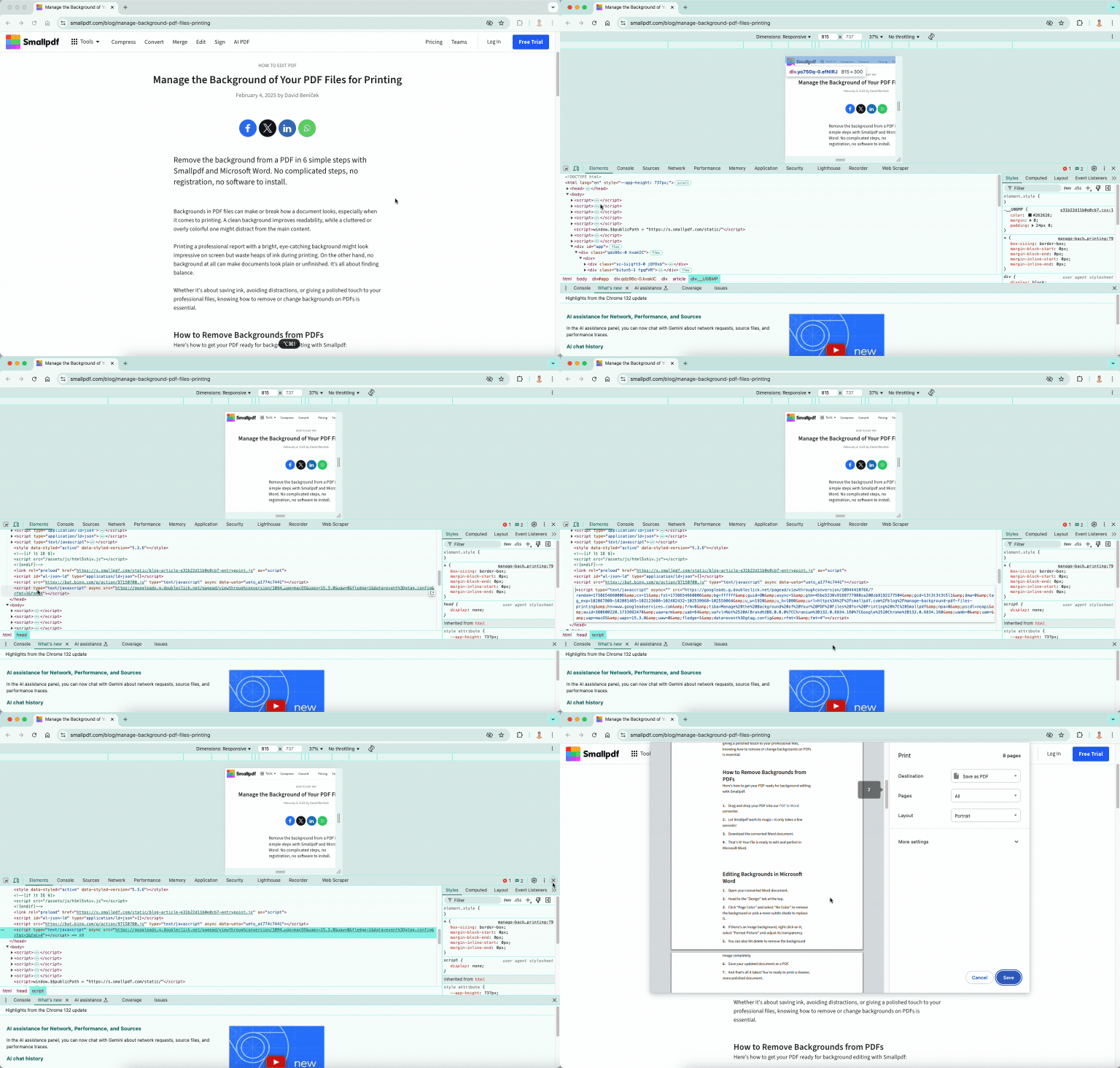
Step 4: Use Smallpdf if the PDF Still Needs Cleanup
If you still get blank pages or weird flow, Organize PDF can remove unwanted pages, and PDF to Word can help you rebuild page breaks in Word.
Browser Behaviors That Affect Page Breaks
Different browsers can paginate the same page differently because their print engines aren’t identical.
Here’s what usually changes the result the most:
Scale and margins: A tiny scale shift can push a block onto the next page.
Headers and footers: Browser-added URLs and dates can steal vertical space.
Paper size: Letter vs A4 changes page length and break points.
If your layout looks wrong, start by toggling scale, margins, and paper size before you rewrite CSS.
Troubleshooting: Page Break Problems and Fixes
This is where most people get stuck, especially with complex pages.
1. Conflicting Print Rules
If one rule forces a break and another avoids breaks inside, the browser may choose a third outcome that looks unpredictable. Simplify rules first. Apply “avoid” rules to the elements that matter, then add forced breaks only where you truly need them.
2. Large Padding and Margins Create Random White Space
Heavy spacing can push content onto a new page and leave a big gap. If you can edit the CSS, reduce print-only spacing inside @media print instead of changing your on-screen layout.
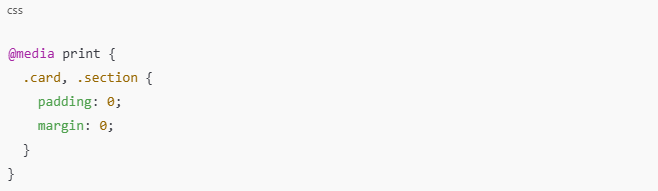
3. Sticky Headers and Fixed Elements Overlap Content
Some pages use fixed nav bars that print on top of text. Hide them in print output.
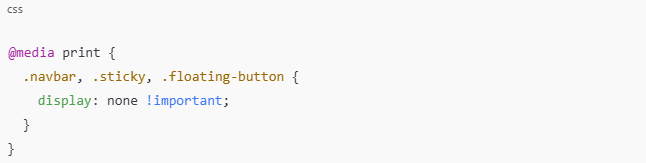
4. The Page Is Fine Online, but the PDF Breaks Differently
That’s normal. You’re switching from a scroll layout to a paginated layout. If print CSS tweaks aren’t enough, export the PDF and fix the structure in Word.
Smallpdf’s workflow is straightforward:
Convert the PDF with our PDF to Word converter.
Insert manual page breaks in Word where you want them.
Convert back with our Word to PDF converter.
When Smallpdf Is the Better Fix Than CSS
Print CSS is ideal when you control the HTML. Smallpdf is ideal when you already have the PDF, or when you need more precise page-level control than a browser print engine will give you.
These are the most common Smallpdf fixes for page break problems:
Remove truly blank pages: Use Organize PDF to delete them.
Rebuild layout in Word: Use PDF to Word, edit page breaks, then export back to PDF.
Insert pages when needed: Use Organize PDF to insert a blank page, or Merge PDF with page view to insert pages from another file.
The Cleanest Way to Control Page Breaks
If you control the HTML, print CSS is your best lever. Use @media print, apply break rules to headings, images, and tables, then validate in print preview.
If you already have the PDF, Smallpdf gives you a practical rescue plan. Convert to Word to rebuild page breaks, remove blank pages in Organize PDF, then export a clean PDF you can share or print with confidence.
Frequently Asked Questions
How do you insert a page break in HTML to PDF?
Add print CSS rules using @media print, then apply break-before: page to elements that must start on a new page. Add older page-break-before: always as a fallback.How do I add page breaks to PDF after it’s saved?
PDFs aren’t built for page-break editing like Word. The clean approach is converting the PDF to Word with Smallpdf PDF to Word, adding page breaks in Word, then converting back.Can you create a PDF without page breaks?
A PDF is page-based by design, so page breaks always exist. If you want a continuous scroll experience, use an HTML page or an eBook-like format instead.How to include a PDF file in an HTML page?
You can embed a PDF using an <iframe> or <object> tag, but rendering varies by browser and device. For public pages, offering a direct download link is often more reliable.How do I link to a specific page in a PDF in HTML?
Many PDF viewers support URL fragments like #page=3, but it’s not universal across all browsers and embedded viewers. Test the behavior in the viewer your audience uses most.What are the disadvantages of using HTML over PDF?
HTML is responsive and scroll-friendly, but it’s harder to guarantee the same “printed” layout everywhere. PDF is consistent for sharing and printing, but it’s less flexible for reflow and on-screen reading.Prepare HTML-generated PDFs for clean pagination on Smallpdf
Related Articles
