


- CompressConvertAI PDF
- Organize
- View & Edit
- Convert from PDF
- Convert to PDF
- SignMoreScan
- Home
- ›
- ›Convert CSV to PDF Without Losing Formatting (Quick & Easy)
Convert CSV to PDF Without Losing Formatting (Quick & Easy)
Turn plain CSV data into a clean PDF that keeps columns readable, headers intact, and pages aligned using Excel, Sheets, and LibreOffice.
More on Excel to PDF
More on PDF to Excel
CSV files don’t store formatting, so PDFs can look messy fast. We’ll show you the steps that keep your tables clean and readable.
A CSV is plain text with separators. It’s great for moving data between systems, but it doesn’t include column widths, fonts, borders, or page layout. That’s why CSV-to-PDF exports can go sideways, with cut-off columns, awkward page breaks, or numbers that suddenly look like dates.
To keep formatting intact, you need to format the CSV in a spreadsheet app first, then export to PDF using print settings.
After that, Smallpdf can help you polish and manage the PDF so it’s easier to share and store.
Quick Checklist: Keep Your CSV Formatting When You Export
If you want a fast setup that prevents most issues, run through this checklist before you export.
Make the first row a header row and style it so it stands out.
Set column widths so headings and values fit on the page.
Turn on text wrapping for long fields like addresses.
Switch to landscape orientation for wide tables.
Set scaling so all columns fit, then preview before saving.
If your goal is sharing or archiving, Smallpdf can help after export. You can compress a heavy PDF, split long reports, or convert PDFs back into spreadsheets when you need the data editable again.
Why CSV Formatting Gets Lost in PDF Exports
CSV stores data, not layout. The moment you open it in Excel, Google Sheets, or LibreOffice, that app decides how to display the data. Those display choices become your PDF layout when you export.
Most formatting problems happen because:
The table is wider than the page, so columns get cut off.
Rows break across pages mid-record, making the PDF hard to scan.
Data is auto-formatted during import, like dates changing or leading zeros disappearing.
The fix is always the same. You make the spreadsheet layout match the page layout before you export.
How To Convert CSV to PDF in Microsoft Excel
Excel gives you strong control over print layout. That makes it reliable for business tables, exports, and reports.
Step 1: Open the CSV and Check the Data Types
Open the CSV in Excel and scan for values that Excel tends to change.
Look closely at:
ZIP codes and IDs, which can lose leading zeros.
Long numbers, which can switch to scientific notation.
Dates, which can be reinterpreted in the wrong format.
If you spot problems, format the whole column as “Text” first, then re-import or re-paste the data into that column.
Step 2: Format the Sheet for Readability
Before you touch export settings, clean up the layout.
Make these adjustments:
Resize columns so content fits cleanly.
Turn on “Wrap Text” for long cells.
Bold and freeze the header row for easier scanning.
Add borders so the table reads clearly in PDF.
Use consistent number formats for currencies and dates.
These changes don’t alter the CSV file itself. They only affect the Excel view you’re about to export.
Step 3: Set the Print Area and Page Setup
Select the data you want to export, then set a print area so Excel doesn’t include empty columns or random cells.
Use:
“Page Layout” > “Print Area” > “Set Print Area”.
Now open print preview and adjust:
Orientation to landscape for wide tables.
Scaling to “Fit All Columns on One Page” when columns spill over.
Margins to narrow if you need more horizontal space.
Step 4: Export as PDF
Once the preview looks right, export it:
“File” > “Save As” > Choose “PDF”.
If the preview shows cut-off columns, go back to scaling. That setting solves most export issues.
How To Convert CSV to PDF in Google Sheets
Google Sheets is a strong choice when you work in the browser or share files with a team.
Step 1: Upload and Open the CSV in Sheets
Upload the CSV to Google Drive, then open it in Google Sheets.
Do a quick formatting pass:
Resize columns so headings and values fit.
Bold the header row and freeze it.
Set alignment for numbers and text so columns scan cleanly.
Step 2: Use Print Settings to Control the PDF Layout
Go to: “File” > “Print.”
This screen controls page breaks and PDF layout.
Set:
Orientation to landscape for wide tables.
Scale to “Fit to width” to avoid cut-off columns.
Margins to “Narrow” if you need extra space.
Scroll through the preview pages and check for broken rows or cut-off headers.
Step 3: Download the PDF
Go to: “File” > “Download” > “PDF.”
If page breaks look rough, adjust scale and try again. A small change can fix multiple pages at once.
How To Convert CSV to PDF in LibreOffice Calc
LibreOffice Calc is a strong free desktop option. It also gives you useful PDF export controls.
Step 1: Import the CSV With the Right Separator
Open the CSV in Calc. If you see a text import window, confirm the separator matches your file.
Most CSV files use commas, but some exports use semicolons or tabs. If you choose the wrong separator, columns will collapse into one.
Step 2: Format for Print Preview
Go to:
“File” > “Print Preview”.
Then open:
“Format Page” and set:
Paper size
Orientation
Scaling
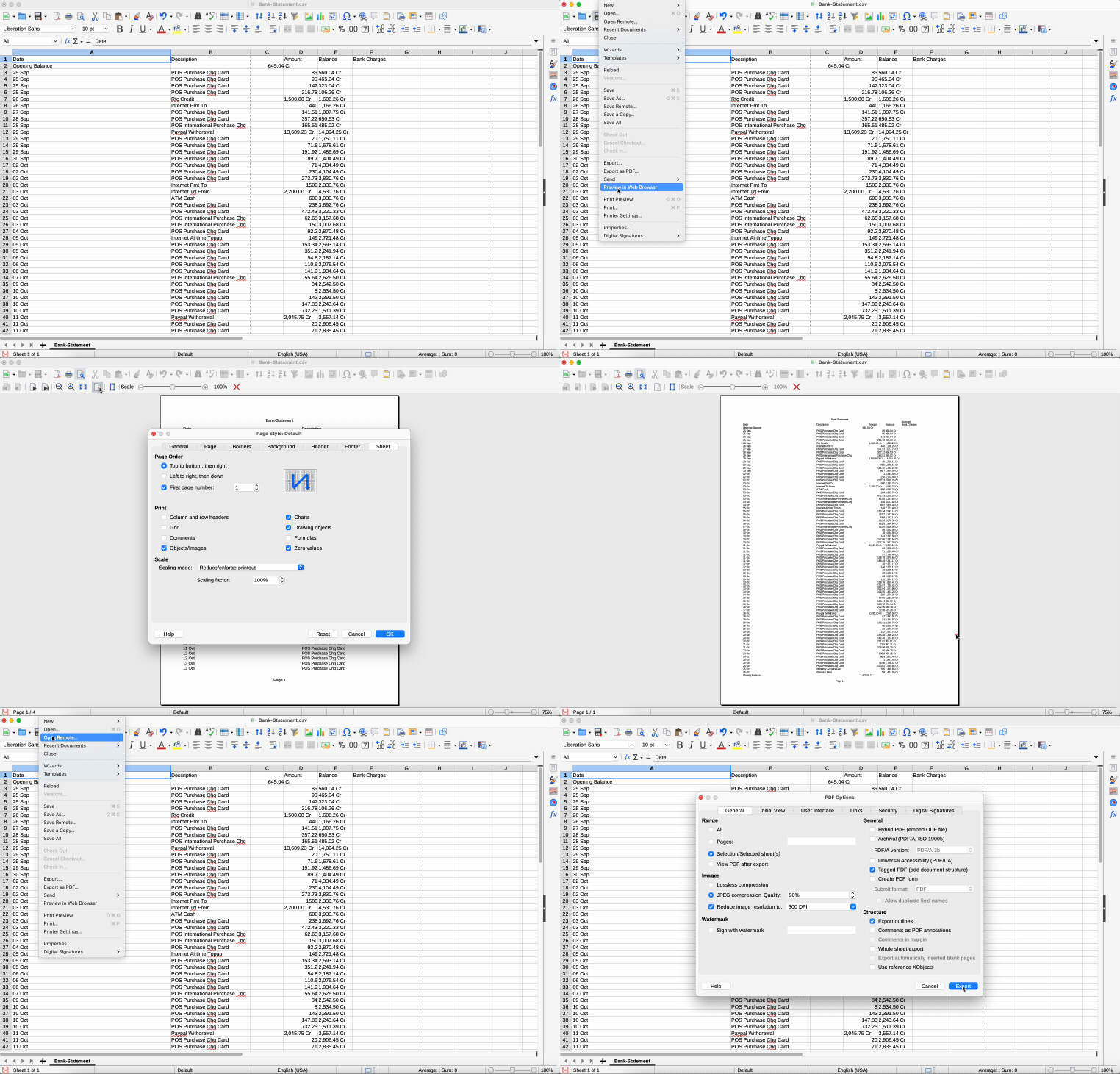
If your table is dense, reduce font size slightly and add borders. That can prevent ugly page breaks.
Step 3: Export as PDF
Export using:
“File” > “Export As” > “Export As PDF”.
LibreOffice also lets you control export ranges. That’s helpful if you only need specific sheets or sections.
Troubleshooting: Fix Common CSV to PDF Formatting Problems
These are the problems most people hit, plus the quickest fixes.
1. Columns Are Cut Off on the Right
Try fixes in this order:
Switch to landscape orientation.
Reduce margins.
Scale to fit all columns to one page.
Shorten header text if it forces wide columns.
2. Rows Split Across Pages
Try:
Reduce row height by removing extra line breaks.
Scale down slightly to reduce page breaks.
Repeat header rows in print settings so each page stays readable.
3. Numbers Turn Into Dates or Scientific Notation
Fix this at import:
Set the column format to “Text” before you paste or re-import.
Apply consistent number formatting right after opening the CSV.
Then export again. A PDF won’t reflect changes you didn’t make in the spreadsheet view.
4. Leading Zeros Disappear
This is common with ZIP codes and product IDs.
Set the column to “Text,” then re-import the CSV. If you already exported, pull the original CSV again and redo the export with the correct format.
5. The PDF Is Too Large to Share
This usually happens when the sheet includes images or the export uses high print quality.
After export, upload the PDF to Compress PDF to reduce file size while keeping pages readable. Use the Compress PDF area below to add your file and start compressing.
How Smallpdf Helps After You Export Your CSV to PDF
Smallpdf doesn’t convert CSV files directly to PDF. You’ll export the PDF from Excel, Google Sheets, or LibreOffice first.
Once you have the PDF, Smallpdf helps you manage it.
You can:
Compress the PDF if email or storage limits are a problem.
Split a long PDF into smaller parts, like monthly reports or separate tables.
Convert the PDF back into an Excel file with PDF to Excel if you need the data editable again, then save as CSV in your spreadsheet app.
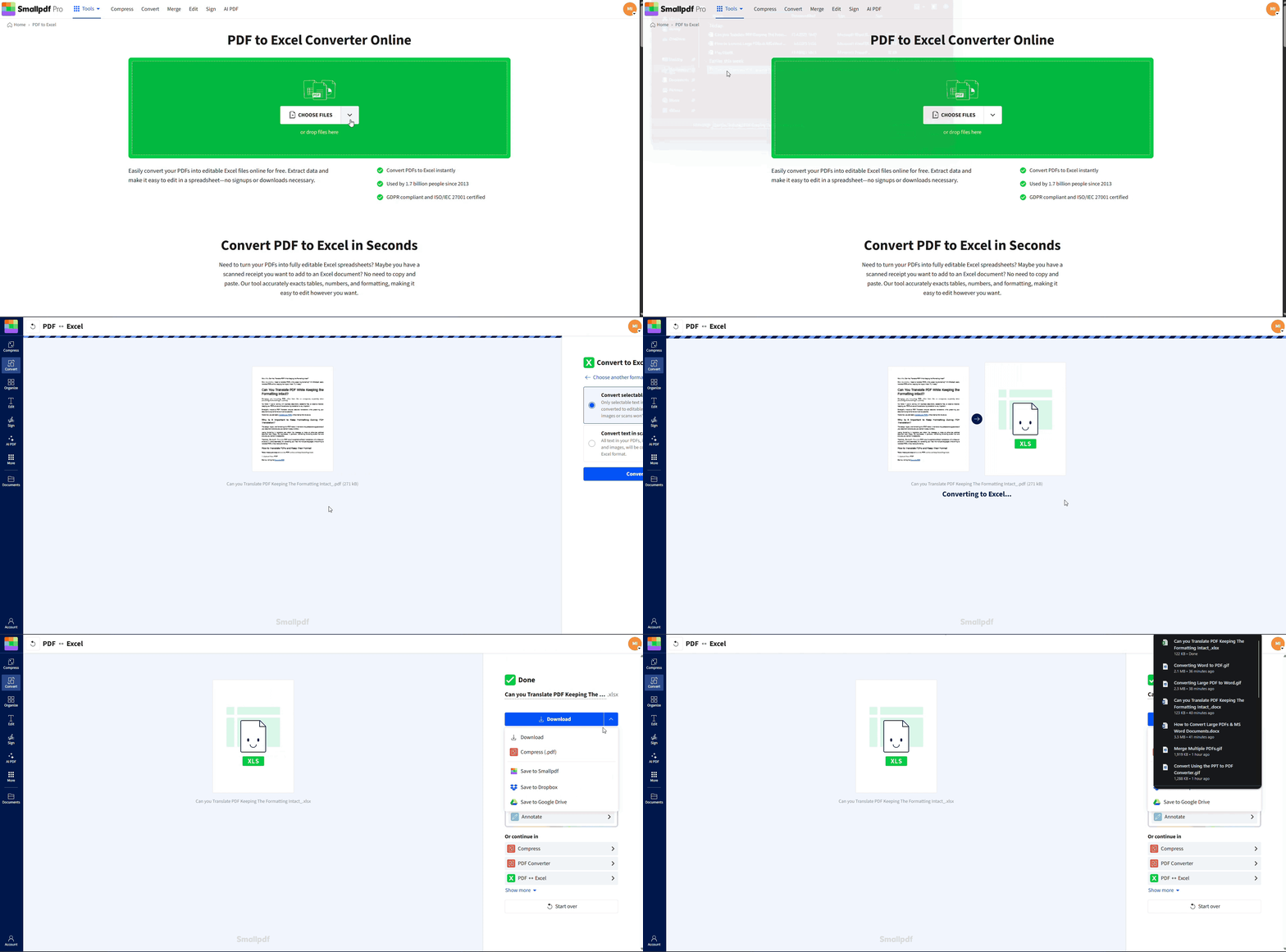
This workflow is also useful when someone sends you a PDF report, and you need the numbers in a spreadsheet again.
Turn Your CSV Into a PDF That’s Ready to Share
Start by formatting your CSV in Excel, Google Sheets, or LibreOffice, then export using print preview so your columns and page breaks look right.
After that, use Smallpdf to compress large PDFs, split long reports into smaller files, or convert PDFs back into Excel when you need the data editable again.
Frequently Asked Questions
How to convert CSV file to PDF format?
Open the CSV in Excel, Google Sheets, or LibreOffice, format the layout, preview the print output, then export as PDF from the file menu.How to convert to PDF without changing format?
CSV has no formatting to preserve. You create the format in a spreadsheet app first, then export using print settings so the PDF matches the page layout.How do I save a CSV file without losing format?
Keep the CSV as your raw data file, and save a second copy as XLSX or ODS for formatting. Export the formatted version to PDF so your original CSV stays clean.Is it safe to convert CSV to PDF?
If the file contains sensitive data, use a trusted device and avoid shared computers. After export, Smallpdf can help you compress or split the PDF, and file transfers use TLS encryption.What are common problems when converting to PDF?
Cut-off columns, awkward page breaks, and auto-formatted values like dates or missing leading zeros are the most common. Print preview and scaling fix most issues.What are the advantages of converting CSV to PDF?
PDF preserves the layout, making it easier to share reports and tables that must look consistent across devices. It also reduces accidental edits compared to spreadsheets.Convert CSV files to well-formatted PDFs using Smallpdf Pro
Related Articles
