


- CompressConvertAI PDF
- Organize
- View & Edit
- Convert from PDF
- Convert to PDF
- SignMoreScan
- Home
- ›
- ›DRM Encrypted AZW3 to PDF: What You Need to Know
DRM Encrypted AZW3 to PDF: What You Need to Know
Trying to turn a DRM encrypted AZW3 to PDF for backup or printing? Here’s the safe path, plus quick PDF tweaks you can do in Smallpdf.
eBooks are popular because they’re convenient and portable. You can buy a book in seconds, sync it across devices, and keep your library in one place.
The friction shows up when an AZW3 file is protected by DRM, short for digital rights management. DRM can restrict copying, printing, and converting, even if you bought the book.
People often search for DRM-encrypted AZW3 to PDF since PDF is simpler to share across devices and apps. The right workflow depends on whether your file needs to be DRM-free or if you need permission to convert it.
Quick Summary: What You Can Do With a DRM Encrypted AZW3
If your AZW3 is DRM-encrypted, you typically can’t convert it to PDF in a normal converter until you have a version you’re allowed to convert.
First, confirm the limitation. DRM can block exporting and conversion outside Kindle apps.
Next, take the safe path. Request a DRM-free copy or an approved alternate format from the publisher or retailer.
Then convert to PDF. Once you have an authorized file, convert it using an eBook converter that supports AZW3.
Finally, improve the PDF in Smallpdf. Compress for sharing, split into chapters, or add notes.
Understanding AZW3 and DRM Restrictions
AZW3, also called Kindle Format 8, is Amazon’s proprietary Kindle format. It supports richer layouts than older Kindle formats, including better typography and styling.
DRM is a separate layer that controls how the file can be used. If a Kindle book is DRM-protected, you may be blocked from exporting, converting, or printing it outside Amazon’s supported reading apps and devices.
The legal rules around bypassing DRM vary widely by country, and in many places, it’s restricted even for personal use.
How To Convert DRM Encrypted AZW3 to PDF: Step-by-Step
This section focuses on safe, legal conversion paths. If your book is DRM-protected and you don’t have rights to convert it, your best move is to get a DRM-free version from an authorized source.
Step 1: Confirm Your Book’s DRM Status
Start in your Amazon account or the retailer you bought from. Look for notes that indicate DRM-free access or multi-device allowances, and check any publisher notes about downloads and usage.
If you can’t find a clear DRM signal, assume DRM exists and move to the next step. Most conversion issues start with hidden DRM restrictions.
Step 2: Get a DRM-Free Copy You’re Allowed to Convert
If you need a PDF for accessibility, backup, or cross-device reading, contact the publisher or retailer support and ask for a DRM-free copy, or an alternate format you’re allowed to use.
This also matters because Amazon has been tightening some download and transfer options over time, which can affect what file types you can access outside Kindle apps.
Step 3: Convert the DRM-Free AZW3 File to PDF in Calibre
Calibre is a popular eBook manager with built-in conversion features. The conversion panel lets you choose an output format and adjust layout, fonts, and page setup before exporting.
In Calibre, you’ll typically:
Add the DRM-free AZW3 file to your library.
Select the book, then choose “Convert books.”
Set “PDF” as the output format, then run the conversion.
Open the exported PDF and review formatting and spacing.
Step 4: Optimize the PDF eBook in Smallpdf
Once you have the PDF, Smallpdf can help you get it ready for real use, like sending it to a tablet, printing it, or saving it to cloud storage.
You can:
Reduce file size with Compress PDF, which is helpful for image-heavy books.
Split a large PDF into chapters with Split PDF for easier reading on mobile.
Edit notes or add simple markups with Edit PDF, especially for study workflows.
Convert the PDF eBook to Word, Excel, JPG, and more using our PDF Converter.
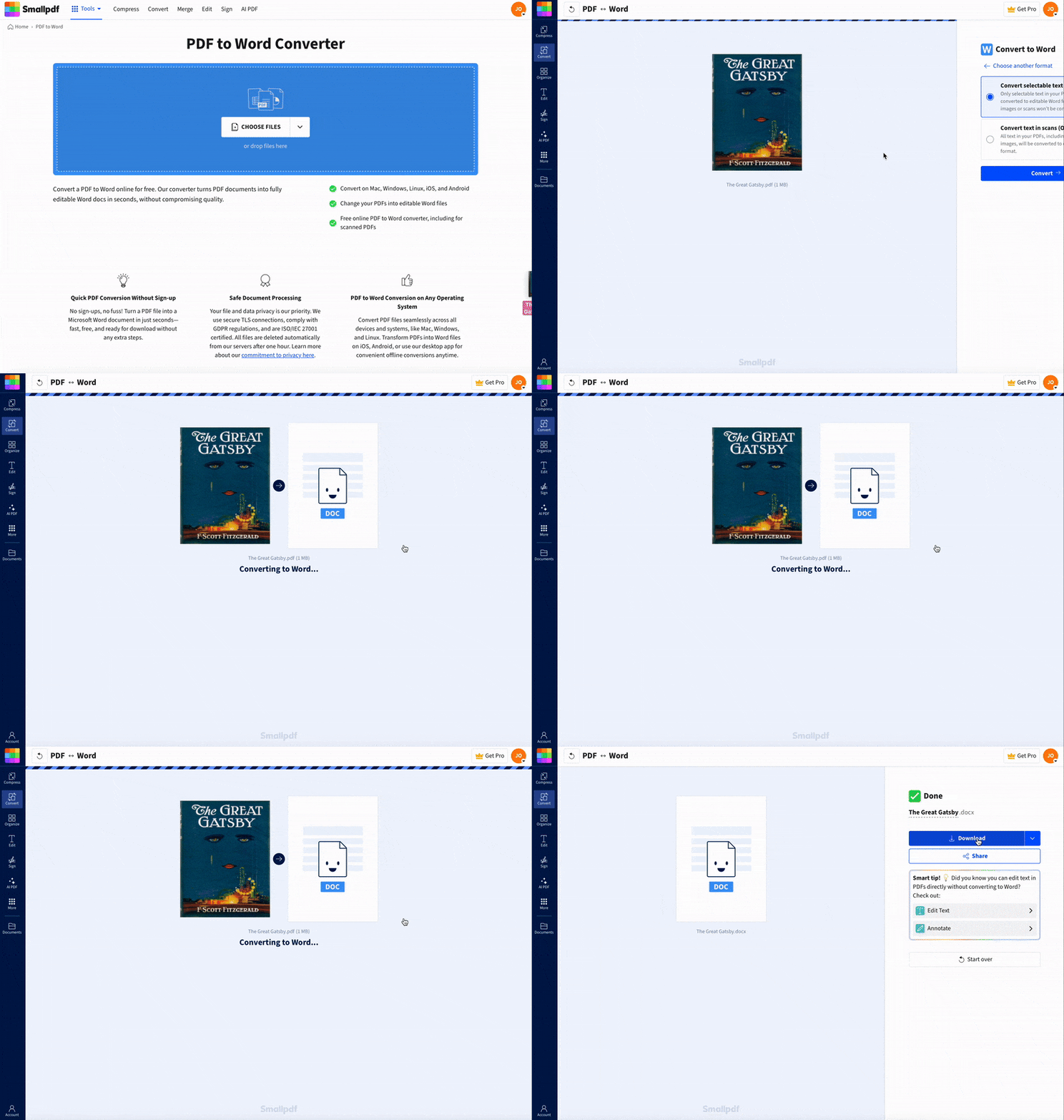
You can upload from your device or cloud, and handle the PDF in your browser without installing anything.
Troubleshooting Kindle-to-PDF Conversion Issues
Even with a DRM-free file, AZW3-to-PDF conversion can be finicky. These are the issues that come up most often.
1. Calibre Won’t Convert the File
If Calibre fails right away, the file may still be DRM-protected or partially downloaded. Re-download the file from an authorized source, then try again.
If the file is DRM-free and Calibre still fails, update Calibre to the latest version and retry the conversion with default settings first. Calibre’s conversion system is powerful, but it can behave unpredictably if you start with heavy custom tweaks.
2. The PDF Has Weird Line Breaks and Huge Margins
This usually comes from page setup settings during conversion.
In your converter, adjust:
Page size to match your target device, like A4 for printing or a tablet-friendly size.
Margins to reduce wasted space.
Font sizing if text looks cramped or oddly spaced.
Then convert again and compare the output side by side.
3. Images Look Soft or Compressed
Some AZW3 files use images for headings, decorations, or even full pages. During conversion, those images can be downsampled.
If the PDF is too large after conversion, compress it with Compress PDF and stick with “Basic compression” first. “Strong compression” can be a better fit for massive PDFs.
4. The PDF Is Too Big to Store or Send
If your PDF is 100 MB or more, you’ll feel it on mobile and email attachments.
Use this cleanup order:
Compress PDF to reduce weight.
Split PDF into sections if you only need parts of the book.
Save each part to Google Drive, Dropbox, or OneDrive for easier access.
5. Your PDF Is Hard to Read on a Phone
PDFs don’t always reflow like eBooks. If your reading app struggles, try splitting the PDF into smaller sections and increasing zoom defaults in your PDF reader.
If the book is mostly text, a DRM-free EPUB can be a better reading format than PDF. Save PDF for printing, archiving, or sharing across PDF-first workflows.
Convert Your PDF eBook Into a File You Can Actually Use
Once you’ve got a DRM-free PDF, you can make it far easier to store, share, and read.
Start by running the file through Smallpdf Compress PDF to cut the size down, then use Smallpdf Split PDF if you want chapters as separate files. If you like reading with notes, open the PDF in Smallpdf Edit PDF and add highlights or quick annotations before you save it.
When you’re ready, upload from your device, Google Drive, Dropbox, or OneDrive, then download the finished PDF back to your device or save it to cloud storage so it’s always within reach.
Frequently Asked Questions
What is DRM, and why is it used?
DRM is a term describing the use of technologies to control the use of copyrighted digital content. Publishers, copyright holders, and manufacturers use DRM to protect eBooks from unauthorized copying, sharing, and modification. However, DRM can also limit flexibility and accessibility for legitimate users.Are Kindle books DRM protected?
Most Kindle eBooks are protected by DRM, but you’ll still want to know how to check for DRM. To do that, find your book’s page on the Amazon store. There, look for “Simultaneous device usage” under “Product details.” If this usage is listed as “Unlimited,” your book is not protected by DRM.Can I convert an AZW3 file to PDF without DRM issues?
Yes, if the AZW3 file is DRM-free. In that case, conversion is a normal format change, and tools like Calibre can export a PDF so you can open it in standard PDF apps.Why does my converted PDF look different from the Kindle version?
Kindle formats are built for reflowable reading, while PDFs are page-based. Fonts, spacing, and page breaks can shift during conversion, especially for books with complex formatting or embedded images.Can Smallpdf convert AZW3 directly to PDF?
Smallpdf focuses on PDF workflows, so you’ll usually convert AZW3 to PDF in an eBook converter first. Once you have the PDF, Smallpdf helps you compress, split, and edit it for easier storage and reading.Is removing Kindle DRM legal?
DRM rules vary by country and by how the content is licensed. In many places, bypassing DRM is restricted even for personal use, so you should treat this as a legal question first, not a technical one. Before removing DRM from your Kindle eBooks, check with your local authorities to ensure DRM removal is legal in your country.Convert legally accessible documents to PDF using Smallpdf Pro
Related Articles
