


- CompressConvertAI PDF
- Organize
- View & Edit
- Convert from PDF
- Convert to PDF
- SignMoreScan
- Home
- ›
- ›How to Zip and Password-Protect a PDF File for Secure Sharing
How to Zip and Password-Protect a PDF File for Secure Sharing
Protect sensitive PDFs with strong passwords. Then zip them into a password-protected folder when you need to send several files at once.
When you send contracts, reports, or ID scans by email, you do not want anyone else opening them. That is where password-protected PDFs and password-protected zipped folders come in.
In this guide, we focus on protecting PDFs first, then show you how to compress and bundle them into a password-protected zipped folder on Windows, Mac, and Linux.
You will see when to use PDF encryption, when a zipped folder makes sense, and how Smallpdf helps you keep everything secure.
Quick Guide: PDF Password vs Password-Protected Zipped Folder
Use this as your fast reference before you get into the steps.
Use a password-protected PDF when you:
Share one document (contract, invoice, report)
Need open/edit/print permissions on that single file
Want strong AES encryption directly on the PDF
Use a password-protected zipped folder when you:
Share many PDFs or mixed files together
Want one attachment instead of several
Already protected each PDF, and now want a secure bundle
You can safely combine both: encrypt each PDF, then add them to a password-protected zipped folder for an extra layer and easier sharing.
How to Password Protect a PDF Online (Free)
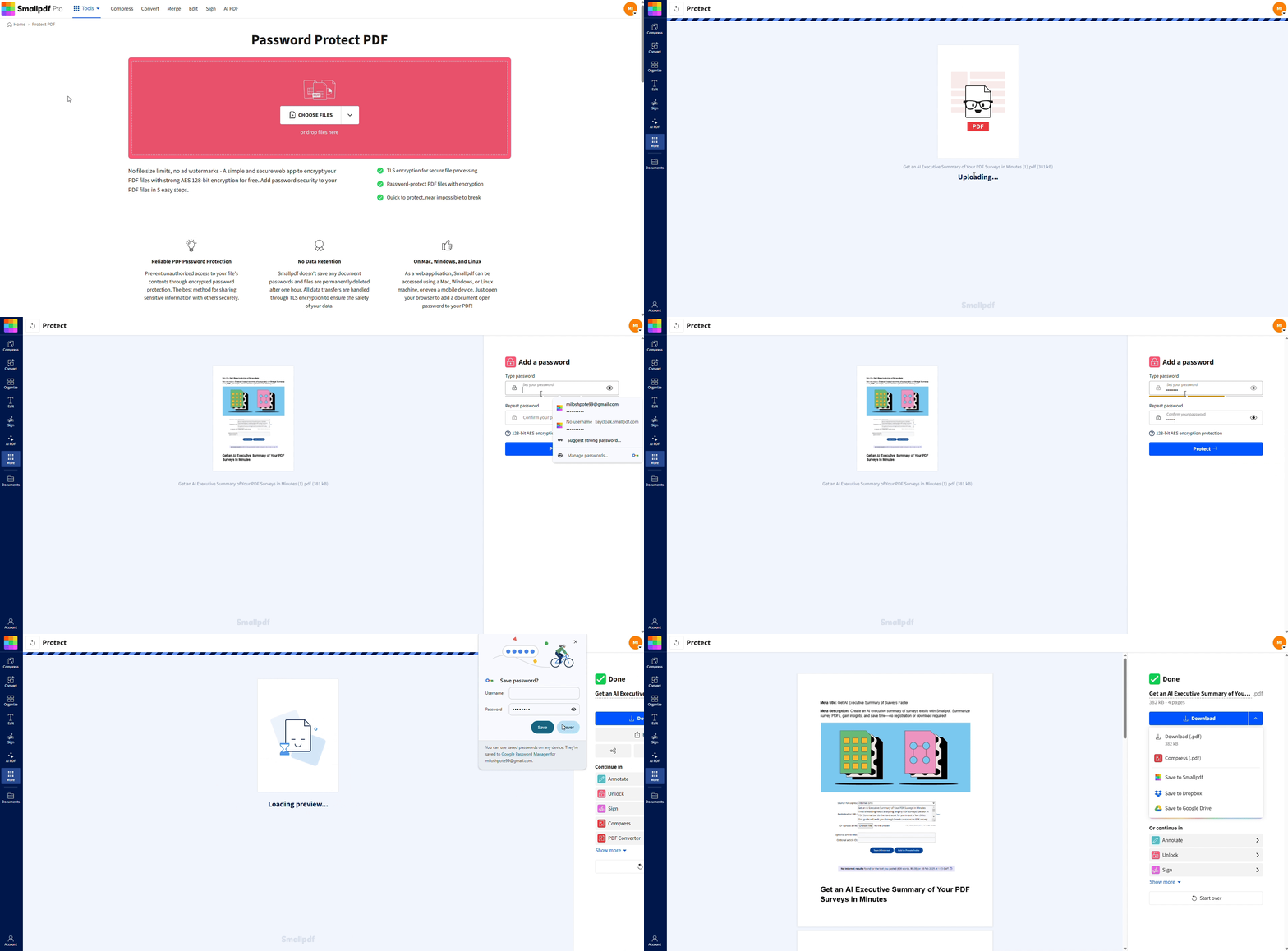
Want to Zip and Password-Protect a PDF File?
Only people who know the password can open the document.
Why use Smallpdf for PDF security?
Browser-based: Works on Mac, Windows, Linux, and mobile.
Strong encryption: PDFs are secured with industry-standard AES encryption.
Automatic deletion: Files are automatically removed from our servers after one hour of processing.
Free option: You can protect individual PDFs without creating an account.
Pro tip: Always share the password over a separate channel (for example, send the PDF by email and the password by chat or phone).
Compress Your PDF Before You Zip It
Even though the file compresses when you zip it, there is a better way to shrink your file.
Encrypted PDFs that contain scans, images, or multi-page reports can still be quite large, which makes email sending or uploads harder.
Compress PDF gives you a smaller, share-ready file without changing the password or weakening encryption.
Here’s how to compress a file with Smallpdf:
Go to Compress PDF on Smallpdf.
Click “Choose File” (or use the drag-and-drop area below) to upload your already-protected PDF.
3. Pick a compression level that fits your needs (standard for everyday sharing, stronger compression for very large files).
4. Click “Compress” and wait for processing to finish.
5. Download the optimized, still password-protected PDF to your device.
You can then:
Send the compressed, protected PDF directly, or
Add it to a password-protected zipped folder together with other files.
Compression reduces file size, not security. Your password and encryption still protect the document after compression.
How to Create a Password-Protected Zipped Folder
Once your PDFs are protected and compressed, you might want to group several documents into a single password-protected zipped folder. The exact steps depend on your operating system.
1. Create a Password-Protected Zipped Folder on Windows
Windows File Explorer can zip folders, but it cannot add a password. For a password-protected zipped folder, you need a compression app that supports encrypted ZIPs (many free tools do).
Typical flow with a ZIP app that supports encryption:
Install a ZIP tool with password support (for example, a free archiver).
Right-click the folder or files you want to protect.
Choose “Add to archive…” or the equivalent option.
Select “ZIP” as the archive format.
Enable password protection and choose “AES encryption” if available.
Enter and confirm a strong password, then click “OK” or “Create.”
You now have a password-protected zipped folder that recipients must unlock with the password.
2. Create a Password-Protected Zipped Folder on Mac (Terminal)
Finder can create ZIPs, but it does not add passwords. To encrypt a ZIP on Mac, use the built-in “zip” command in Terminal.
Put all the files you want to protect into one folder.
Open “Terminal.”
Run this command, replacing names with your own: zip -er secure-folder.zip /path/to/your/folder
Enter and confirm your “ZIP password” when prompted.
This creates secure-folder.zip as an encrypted ZIP. Anyone who opens it will be asked for the password.
3. Create a Password-Protected Zipped Folder on Linux
Most Linux systems include the zip command with encryption support.
Open your terminal.
Navigate to the folder with your files.
Use: “zip -er secure-folder.zip your-folder-or-file.”
Set and confirm the password.
Your encrypted ZIP is now ready to share.
ZIP Encryption vs PDF Encryption: What’s Safer?
Both ZIP archives and PDFs can be encrypted, but they behave differently.
PDF encryption (with tools like Smallpdf):
Uses strong AES encryption on the PDF itself.
Can distinguish between open password and permissions (print, copy, edit).
Works well when you protect individual documents.
ZIP encryption (password-protected zipped folders):
Protects the entire archive, including many files.
Strength depends on the tool: modern apps support strong AES; older “ZipCrypto” is weak.
Useful when you send several files as one package.
For the best security:
Encrypt each PDF first with a strong password.
Then, if you need to bundle them, create a password-protected zipped folder as a second layer.
Tips for Strong, Shareable Passwords
A password is only as strong as the way you create and share it.
Create strong passwords
Aim for 12–16 characters at minimum.
Mix uppercase, lowercase, numbers, and symbols.
Avoid names, birthdays, or common words.
Use a “passphrase” (several random words) to keep it memorable.
Share passwords safely
Never put the file and password in the same email.
Send the password over a different channel (chat, SMS, or a call).
For repeated sharing, store passwords in a password manager instead of notes.
Smallpdf vs Built-In Tools: When to Use Which
Built-in options like Preview and Word are useful, but they have limits.
Built-in tools (Preview, Word, OS ZIP)
Convenient if you already work in those apps
Fine for single, simple documents
OS ZIP tools often lack password protection from the GUI
Settings vary across systems, making them harder to standardize in a team
Smallpdf
Works in any browser, on any device
Uses strong, modern encryption for PDFs
Integrates with Google Drive, Dropbox, or OneDrive.
Supports batch protection and other workflows with Pro
You can combine them: design documents in Word, secure them with Smallpdf, then zip them if you want a single package.
Keep Your PDFs and Zipped Folders Secure
When you protect your PDFs with strong passwords and, when needed, bundle them into password-protected zipped folders, you reduce the risk of sensitive files landing in the wrong hands.
Smallpdf gives you a simple way to encrypt those PDFs in your browser, and then you can decide whether you also want the extra organization and protection of a zipped folder for sharing.
Frequently Asked Questions
How do I password-protect a zipped folder?
To password-protect a zipped folder, use third-party apps like WinRAR or 7-Zip. Unfortunately, built-in zip tools on most operating systems don’t support password protection.How do I password-protect a ZIP file for free?
You can use free third-party applications, such as 7-Zip, available for both Windows and Mac, to add a password to your zipped files.Can I password-protect a ZIP file directly in Windows 11?
Windows 11 does not have a built-in feature to add passwords to ZIP files. For this feature, we recommend using tools like 7-Zip.How do I zip and password-protect a PDF on Mac?
To zip a PDF on Mac, right-click the file, select “Compress,” and add it to a ZIP folder. For password protection, use Smallpdf Protect PDF before compressing the file.How do I open a password-protected ZIP file?
To open a password-protected ZIP file, enter the correct password when prompted upon opening the file with extraction software. Make sure you have the correct tool for opening encrypted ZIP files.Secure PDFs with passwords before creating ZIP files using Smallpdf Pro
Related Articles
